Make Your Own Pak Files
You can create your own .pak files to extend the environment or agent library of SimWorld by following these steps:
Note
We use Windows for this tutorial, but the steps are similar for Linux.
If you are on Windows, you can use cross-compiling to build pak files for Linux by referring to this document: Unreal Engine Linux Cross-Compilation.
1. Download the Unreal Editor
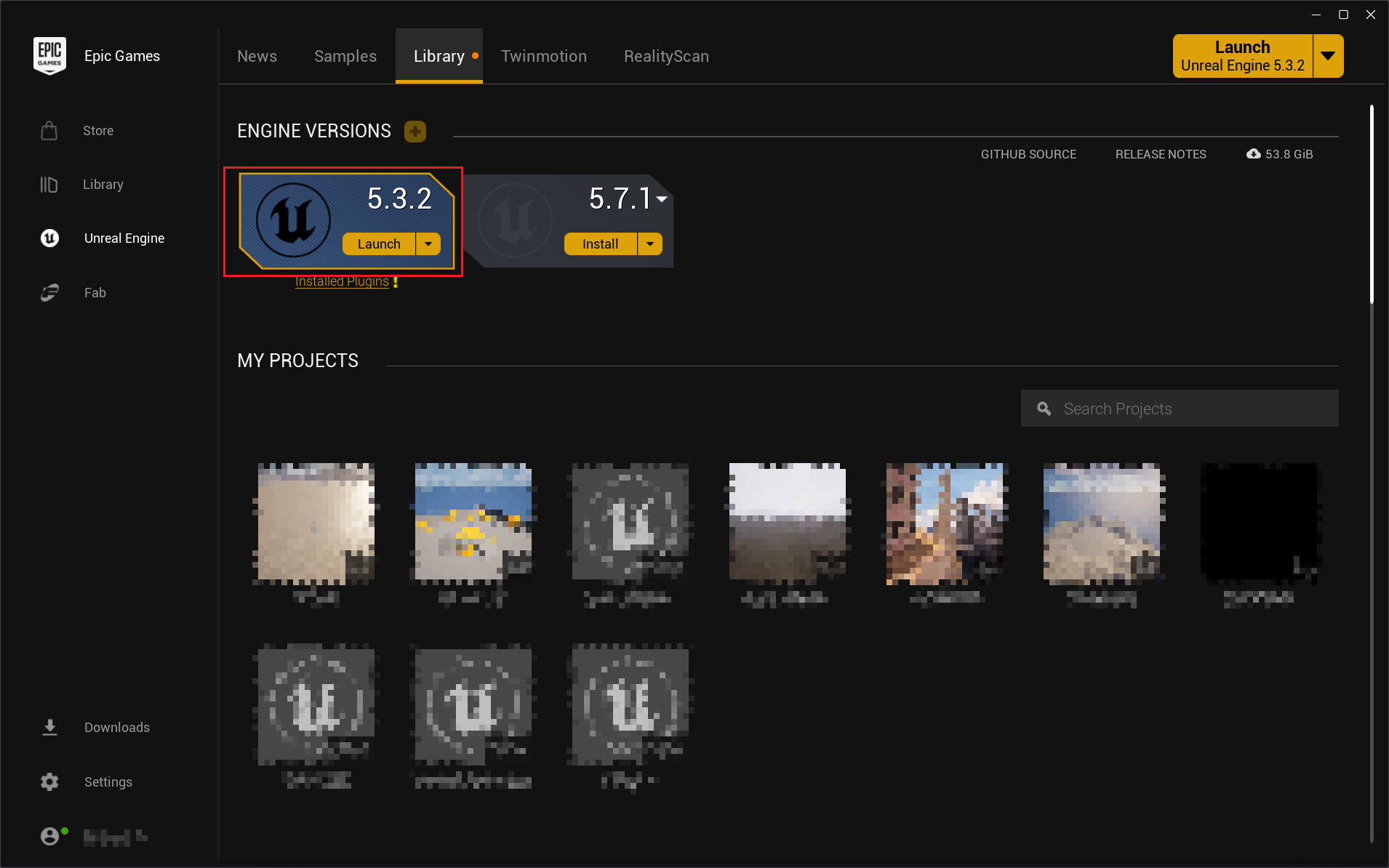
Download the Unreal Editor from the Epic Games Launcher. The latest version of SimWorld uses Unreal Engine 5.3.2, so make sure to install the same version.
2. Create a New Unreal Project
Launch the Unreal Engine and create a new project. Then name the project SimWorld to match the SimWorld structure.

Warning
Make sure your project is named SimWorld, otherwise the pak file may not work properly.
3. Import Assets
Import your desired assets into the project. You can use assets from the Unreal Marketplace or custom assets. Make sure all assets are properly organized in the same folder under the Content directory.

4. Set Up Chunk Package
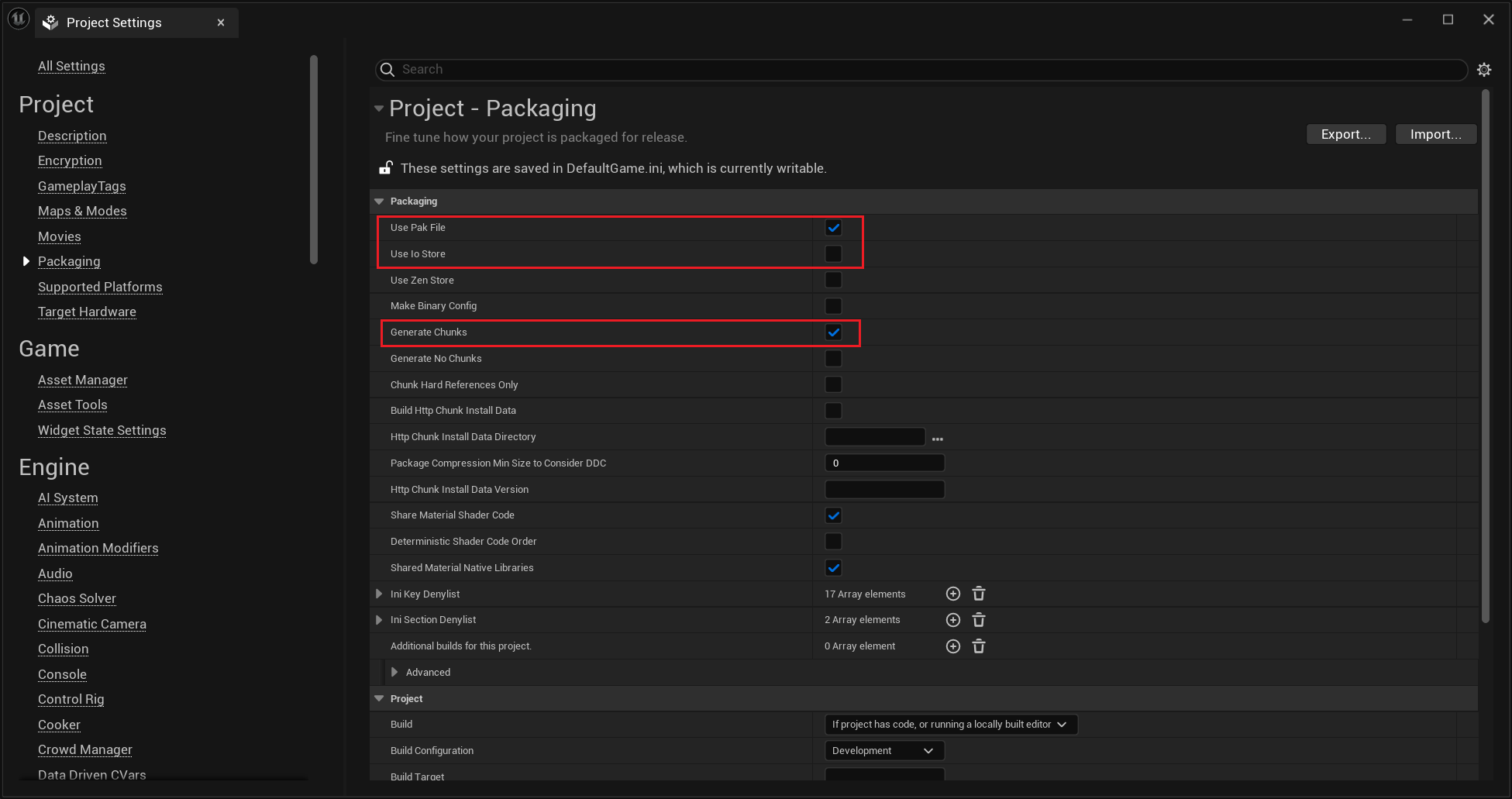
Open project settings by navigating to Edit > Project Settings. In the Project Settings window, go to the Packaging section and configure the following options: enable Use Pak File, disable Use Io Store, and enable Generate Chunks.
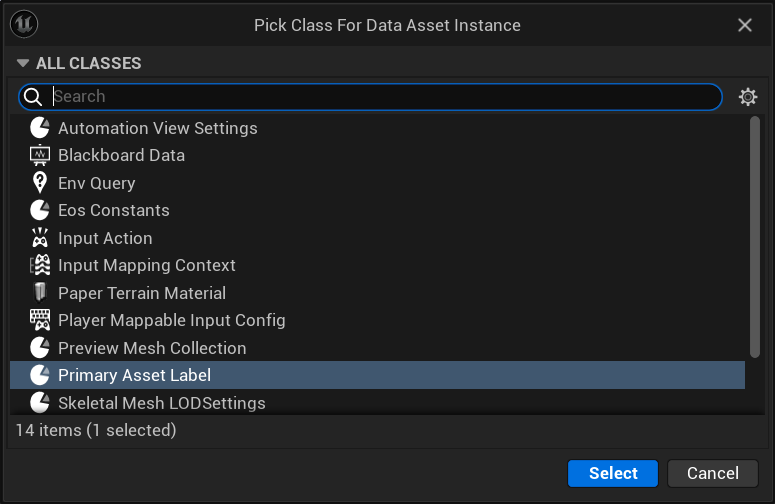
Then, add a Data Asset in the directory where you imported your assets. Right-click in the Content Browser, select Miscellaneous > Data Asset, and choose Primary Asset Label to create a new Data Asset.
5. Configure Chunk Settings
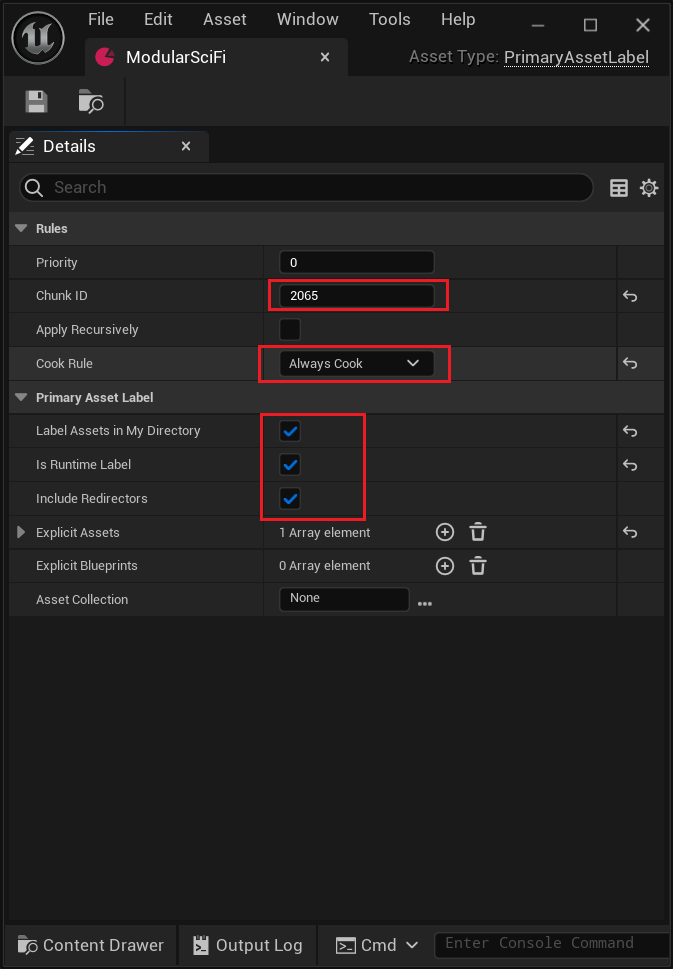
Open the created Data Asset and set the ChunkID. Enable all options under Primary Asset Label to make sure all assets under this directory will be included in the pak file.
Important
The ChunkID should be unique and not conflict with existing chunks in SimWorld. You can refer to the additional_environments to avoid conflicts.
6. Build the Pak File
Finally, package the project by navigating to Platforms > Windows > Package Project. Choose a directory to save the packaged project. After packaging is complete, navigate to the saved directory and locate the .pak file in the <Path to your packaged project>/SimWorld/Content/Paks folder.

7. Use the Pak File in SimWorld
Copy the generated .pak file to the SimWorld/Content/Paks directory of your SimWorld installation. You can now load the new environment or assets in SimWorld by specifying the corresponding Map URI or asset path. Refer to the additional_environments for loading instructions.